Launch Utility from Parent Application
Technical notes on how to package a utility app with a parent application and launch it at runtime. This note assumes that you have generated a new app using the CCL Builder tool.
macOS Xcode project
Add your utility app’s xcode project to the parent app’s xcode workspace by opening it’s containing folder in finder and dragging the project into the parent app’s project navigator. Add the utility as a build dependency to the parent app’s xcode project by going to edit target -> Build and adding the build target for the utility app with the + button.
Create a symlink from the output of the build folder to the appropriate plugin folder by adding the following to the utility app’s “Run Script” build phase:
rm -rf "../../../../../build/mac/$CONFIGURATION/Plugins/$FULL_PRODUCT_NAME"

ln -s "$TARGET_BUILD_DIR/$FULL_PRODUCT_NAME"
  "../../../../../build/mac/$CONFIGURATION/Plugins/$FULL_PRODUCT_NAME"
Note
The path to /build/mac/$CONFIGURATION is relative to the project directory.
Remove the “Copy Frameworks and Dylibs” build step.
The utility app should not have it’s own copies of the ccl frameworks. It uses instead the existing ones in the outer app. To make this work, the @rpath for the dynamic linker needs to be set accordingly. In your utility app’s “Build Settings”, search for “rpath” and change the values to the following:
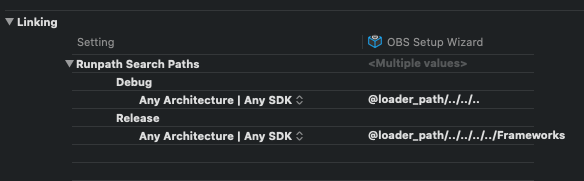
Once again, these paths are relative.
Copy the file from the Plugins folder to the appropriate location in the parent app by adding the following to the “run script” build phase of the parent app, keeping in mind that paths are relative.
# copy utility app

YOURAPPNAME="The name of your app.app"

YOURAPPPATH=$PROJECT_DIR/../../../../../build/mac/$CONFIGURATION/Plugins/$YOURAPPNAME

YOURAPPTARGET=$TARGET_BUILD_DIR/$TARGETNAME.app/Contents/Plugins/$YOURAPPNAME

if [ -d "$YOURAPPPATH" ] || [ $CONFIGURATION = "Release" ] ; then

    mkdir -p "$TARGET_BUILD_DIR/$TARGETNAME.app/Contents/PlugIns/"

    rm -rf "$YOURAPPTARGET"

    cp -r "$YOURAPPPATH" "$YOURAPPTARGET"

fi
Windows Visual Studio project
If you have built the new app using the cclbuilder utility, the only changes needed are:
Add the utility app to it’s parent’s visual studio solution.
Add the utility project as a build dependency for the parent app by right clicking the parent app project in VS -> Build Dependencies -> Project Dependencies and adding the project to the list.
Modify the utility app’s CustomBuild settings by opening it’s .vcxproj in a text editor, searching for “<CustomBuild” and changing the path of \tools\bin\win\ccl\package.exe to be correct relative to your project’s location on disk.
Note
If you want the parent app’s installer to install the child app, you need to edit the nsis scripts for the parent app to include the child app.
Source code
Below is an example of launching the app from it’s parent app from C++. A real example of this code is in applications/hardware/universalcontrol/desktop/source/uclaunchpanel.cpp:
String filename ("Your app name");
String folderName ("Plugins");
Url path;

#if DEBUG
    GET_BUILD_FOLDER_LOCATION (path)
#else
    System::GetSystem ().getLocation (path, System::kAppDeploymentFolder);
#endif

#if CCL_PLATFORM_MAC
    path.descend (LegalFolderName (folderName));
#endif

path.descend (LegalFileName (filename));
path.setFileType (FileTypes::App (), true);

System::GetSystemShell ().openUrl (path);
Important
Because you are launching this app from a parent app, you will not be able to debug it’s source code unless you launch the utility app’s target. ie if you are trying to debug the obs setup wizard, you cannot do so by launching the ucapp target.
You must instead launch the obssetupwizard target as a standalone app. Due to the decision to remove the “copy Frameworks and Dylibs step” on mac, you must first build the parent app in order to debug the utility app.